

Published on November 14th, 2026
The best AI tool for presentations depends on where your deck has to live. If you work in PowerPoint, use Microsoft Copilot, Claude for PowerPoint, or the free ChatGPT for PowerPoint add-in. Teams that run on Google Workspace already have Gemini built into Google Slides. And for a polished first draft from a prompt in under a minute, Gamma is the fastest standalone option, with Beautiful.ai, Canva, Prezi and Pitch each winning a narrower job.
That’s the short answer. The longer one is more useful, because picking the wrong tool here costs you more than a subscription fee. It can cost you a deck you can’t open in PowerPoint, a brand template the AI keeps ignoring, or a credit meter that runs dry the night before a board meeting.
I’ve organized this guide by task rather than by hype. You’ll find out what each tool is actually good at, what it costs heading into 2027, where the hidden limits sit, and how to build a deck with AI without ending up with slides that all look like they came out of the same machine.
Quick picks: the best AI presentation tool for each job
| Your situation | Best pick | Starting price |
|---|---|---|
| Your company already pays for Microsoft 365 | Microsoft 365 Copilot | $21/user/month ($18 first-year promo through Dec 31, 2026) |
| Your corporate template must stay exactly right | Claude for PowerPoint | Included with Claude Pro ($20/month) |
| You want AI inside PowerPoint for free | ChatGPT for PowerPoint | Free tier (limited usage) |
| Your team lives in Google Workspace | Gemini in Google Slides | Included in Business Standard and up |
| You switch between Google Slides and PowerPoint | Plus AI | $10/user/month (billed annually) |
| You want the fastest first draft from a prompt | Gamma | Free; Plus from $9/month (billed annually) |
| You build on-brand sales decks every week | Beautiful.ai | $14.50/month (billed annually) |
| You need decks plus social and marketing graphics | Canva | Free; Pro $144/year |
| You present live and want to stand out | Prezi | Free; Standard $7/month (billed annually) |
| Your team co-edits decks and tracks who views them | Pitch | Free; Plus €10/month (billed annually) |
Prices change often in this category. Two of these vendors adjusted their pricing within the last few months alone, so treat every figure here as a starting point and confirm it on the vendor’s page before you buy.
Why AI presentation tools look completely different going into 2027
In 2026, the AI assistants moved into the presentation apps themselves. A year earlier, “AI for presentations” mostly meant a separate website that spat out slides you then had to rebuild in PowerPoint. Now all three of the biggest AI assistants (Microsoft Copilot, Anthropic’s Claude and OpenAI’s ChatGPT) run as sidebars inside PowerPoint. Google did the same for Slides, rolling out full deck generation with Gemini on June 30, 2026.
That shift matters because the deck stays a real deck. The slides come out as native, editable PowerPoint or Google Slides objects, not flattened images or a web page you can’t take with you.
Meanwhile, the standalone tools haven’t stood still. Gamma, the category leader, crossed $100 million in annual recurring revenue in November 2025 with a team of roughly 50 people, and raised a $68 million Series B at a $2.1 billion valuation. By the time it launched Gamma 5 in October 2026, the company said more than 100 million people had used the product.
How much time presentations really eat
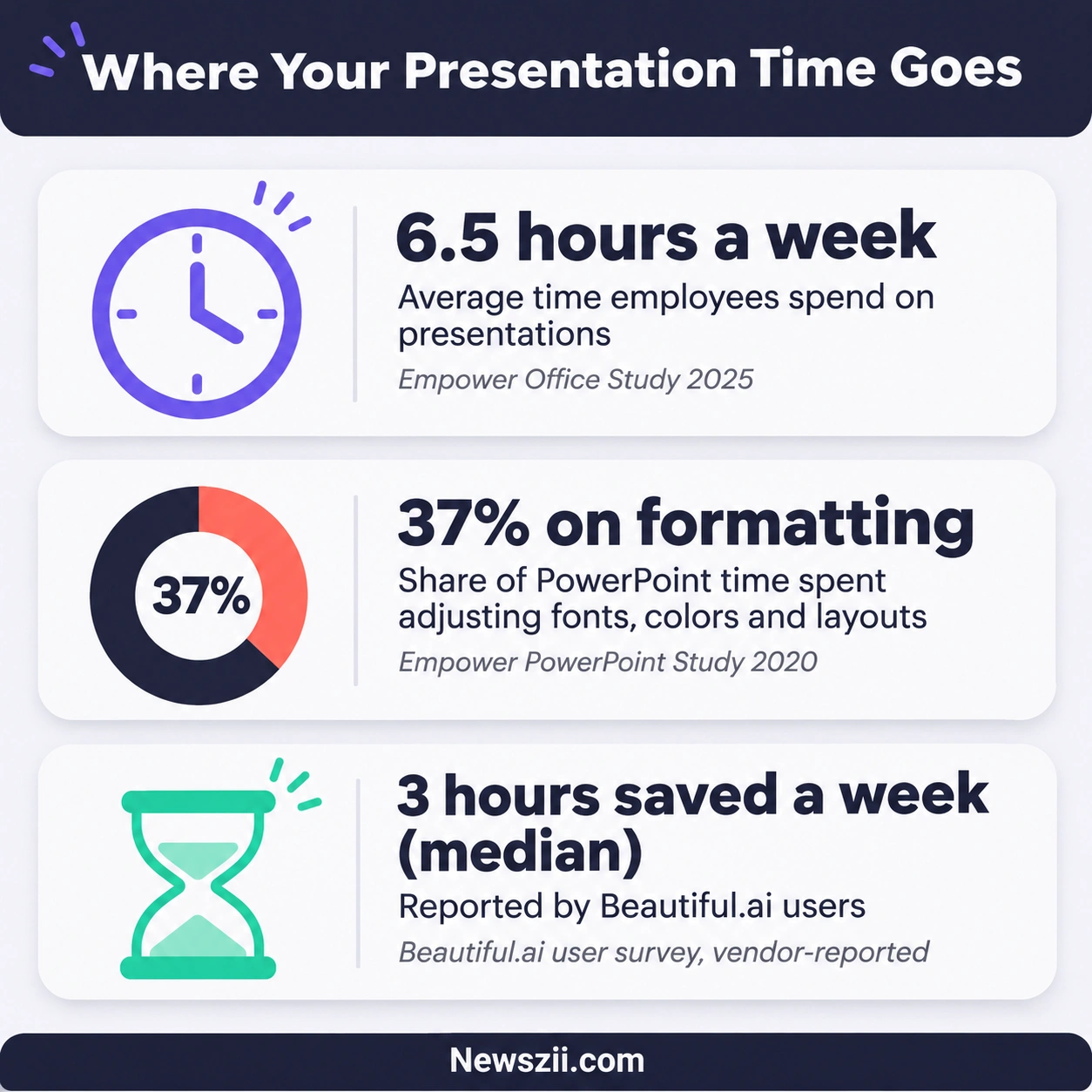
The reason this market exploded is simple: slides take a ridiculous amount of time. Empower, a company that sells a PowerPoint add-in, surveyed around 1,000 office workers for its 2025 Office Study and found they spend about 6.5 hours a week on presentations. That’s close to a full working day, every week.
An earlier Empower study (2020) found that about 37% of the time people spend in PowerPoint goes to formatting: nudging boxes, fixing fonts, rebuilding charts. That’s the part AI is genuinely good at taking off your plate.
Vendors make bigger claims, and you should read them as vendor claims. Beautiful.ai surveyed 550 of its own users, who reported a median of 3 hours saved per week and an average of 5.6 hours. Even if your real number is half that, it adds up fast across a team.
The lesson from Tome
Not every AI presentation tool made it. Tome, once one of the most hyped names in the space with more than 20 million users, shut down its presentation product on April 30, 2025. The team pivoted to building an AI CRM. Users who hadn’t exported their decks lost access to them.
That story is the single best argument for one rule I’ll keep coming back to in this guide: if a deck matters, make sure you can get it out as a real PowerPoint or Google Slides file. A tool that keeps your work locked inside its own website can disappear, change its pricing, or pivot, and take your presentations with it.
How to choose an AI presentation tool: start with where the deck will end up
Most people choose an AI presentation maker by watching a demo and picking whichever one made the prettiest slides. That’s backwards. The prettiest output means nothing if your boss needs a .pptx on the company template by Friday.
Ask these four questions instead, in this order.
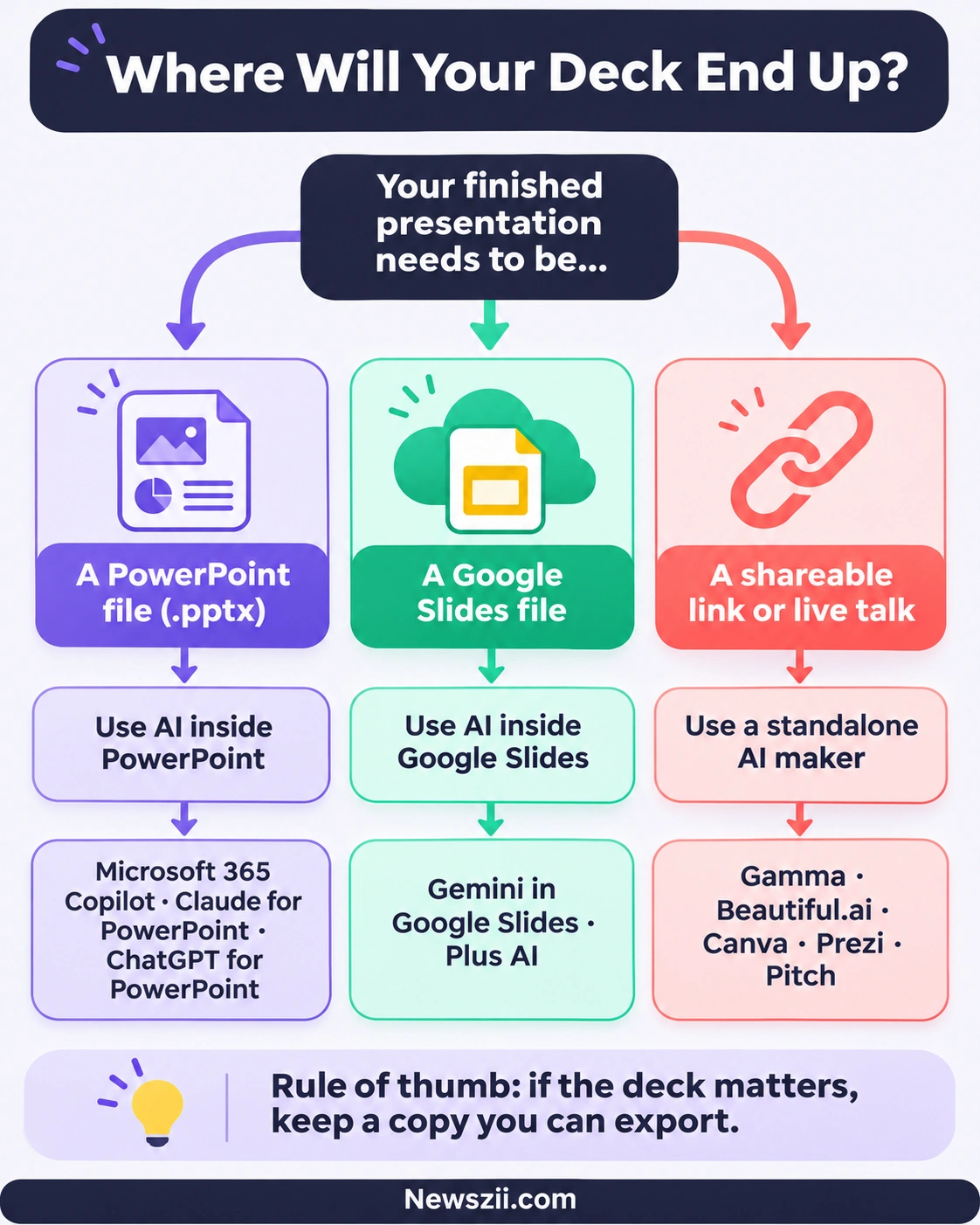
- Where does the finished deck need to live? If it has to be a PowerPoint file on your corporate template, start with a tool that works inside PowerPoint. If it lives in Google Drive, start with Gemini or Plus AI. If you’ll share it as a link and nobody cares about the file format, a standalone tool like Gamma or Pitch opens up.
- Do you have a brand template you can’t break? Finance, consulting and large sales teams usually do. Tools that read your slide master (Claude for PowerPoint, Copilot, Plus AI, Beautiful.ai) handle this far better than tools that impose their own themes.
- What are you already paying for? If your company has Microsoft 365 Copilot licenses or Google Workspace Business Standard, you may already own a capable AI presentation tool. Check before you add another subscription.
- How often will you use it? One deck a month fits comfortably inside most free tiers. Five decks a week will burn through credits on almost any plan, and that’s where the real cost shows up.
Three kinds of AI presentation tools
Every tool in this guide falls into one of three groups. Knowing which group you need narrows the field fast.
- AI inside PowerPoint. Copilot, Claude for PowerPoint and ChatGPT for PowerPoint work in a sidebar while you edit a normal .pptx file. Best for corporate work and anyone who has to hand over a real PowerPoint file.
- AI inside Google Slides. Gemini is built in for many Workspace plans, and Plus AI adds a cross-platform option. Best for teams that already collaborate in Google Drive.
- Standalone AI presentation makers. Gamma, Beautiful.ai, Canva, Prezi and Pitch each have their own editor. They’re often faster and more visually ambitious, but you’re working in their world, and exports back to PowerPoint vary in quality.
With that frame in place, here’s how each tool actually performs.
Best AI tools inside PowerPoint
If your work ends as a .pptx file, these three tools let you skip the export-and-fix routine entirely. They all build and edit slides directly in the deck you have open.

1. Microsoft 365 Copilot: best if your company already pays for it
Copilot is the default choice for organizations that run on Microsoft 365. It’s built into PowerPoint on Windows, Mac and the web, and in April 2026 its agentic PowerPoint features reached general availability, so it can now create and revise a presentation through a back-and-forth conversation instead of one-shot prompts.
Its real advantage is context. Copilot can draw on the Word documents, emails and Teams content your organization already has in Microsoft 365, which makes it strong for turning an existing report into a deck.
What it costs: The Microsoft 365 Copilot Business add-on lists at $21 per user per month on an annual plan, for organizations with up to 300 users. Existing customers who buy between July 1 and December 31, 2026 get it for $18 per user per month for the first year. Monthly billing costs $25.20. The enterprise version is $30 per user per month, billed annually. Either way, you need a qualifying Microsoft 365 plan underneath.
The catch: “Copilot is in PowerPoint” doesn’t mean it’s free. In April 2026, Microsoft removed in-app Copilot Chat from Word, Excel and PowerPoint for unlicensed users at organizations with more than 2,000 seats. If you’re at a large company and the Copilot button seems to have stopped working, that’s probably why.
Best for: Microsoft-first companies that want one AI assistant across Word, Excel, Outlook and PowerPoint.
2. Claude for PowerPoint: best for keeping a strict template intact
Claude for PowerPoint is Anthropic’s add-in, and its standout trait is respect for your template. It reads your slide master, layouts, fonts and colors, then builds new slides inside that framework. It can also turn bullet points into native, editable PowerPoint charts and diagrams rather than pasted-in images.
That makes it a strong fit for consultants, finance teams and anyone whose decks get judged on formatting as much as content. It also shares context with Claude for Excel, so a financial model you’ve just worked through in Excel carries over when you switch to PowerPoint to present it.
What it costs: The add-in itself is free to install. It’s included with paid Claude plans: Pro (from $20 a month in the US), Max, Team and Enterprise. Usage counts against your normal Claude limits. It is not available on the free Claude plan.
The catch: It doesn’t run on PowerPoint 2016 or 2019 perpetual licenses, or on PowerPoint for iPad or Android. You’ll need a current Microsoft 365 build, Mac version 16.46 or later, or PowerPoint on the web.
Best for: Decks built on a client or corporate template, and anyone moving between spreadsheet analysis and slides.
3. ChatGPT for PowerPoint: best free AI inside PowerPoint
OpenAI launched ChatGPT for PowerPoint as a beta on May 21, 2026, and it became generally available on July 6, 2026. It runs as a sidebar where you can draft a deck from source material, revise slides, and ask questions about your deck’s story and structure.
The headline feature is access. OpenAI lists it for Free, Go, Plus, Pro, Business, Enterprise, Edu and K-12 users. The free and Go tiers get limited usage, but that’s still more than Copilot or Claude offer at no cost.
OpenAI also offers ChatGPT Slides, a separate product that rolled out in October 2026. It builds and edits a deck inside ChatGPT itself, lets teammates collaborate in real time, and exports to PowerPoint, PDF or Google Slides on the web. Slides runs through ChatGPT Work, which requires a paid plan, so it isn’t part of the free offer.
The catch: OpenAI itself notes that advanced edits and template matching may still need review. Check numbers and claims before you share anything.
Best for: Students, freelancers and small teams who want AI help in PowerPoint without paying for another license.
Best AI tools for Google Slides
If your team shares everything through Google Drive, you don’t have to leave Slides to get AI help. These two options cover almost every Workspace setup.
4. Gemini in Google Slides: best for Google Workspace teams
On June 30, 2026, Google added full presentation generation to Slides. You type a prompt, attach reference files from Drive (Docs, Sheets, PDFs or older decks), and Gemini builds a multi-slide presentation. You can also point it at an existing deck so the new one matches its style.
What I like most about Gemini’s approach is the outline step. Before generating anything, it asks follow-up questions about tone, length and audience, then shows you an outline to edit and approve. Only after you sign off does it build the slides. That single checkpoint saves a lot of wasted generations, because you fix the structure before any design work happens.

Gemini can also suggest relevant files, emails and Chat conversations to pull in, and everything it creates is native and fully editable in Slides.
What it costs: It’s included in Google Workspace Business Standard and Plus, Enterprise Standard and Plus, and the consumer Google AI Pro and AI Ultra plans, plus Google AI Pro for Education. If you’re already on one of those, you don’t pay anything extra.
The catch: The feature launched in English only. Google also applies per-user usage limits now that its launch promotion has ended, and higher limits come with the AI Expanded Access add-on.
Best for: Any team that already works in Google Workspace and wants decks grounded in its own Drive files.
5. Plus AI: best if you switch between Slides and PowerPoint
Plus AI is the pragmatic pick for people who don’t get to choose their presentation app. One subscription covers an add-on for Google Slides and an add-in for PowerPoint, so you can build a client deck in PowerPoint on Monday and an internal update in Slides on Tuesday with the same tool.
It generates presentations from prompts, documents or outlines, works with your existing templates, and can remix, rewrite or translate slides you already have. It also lets you review the outline before generation, similar to Gemini.
What it costs: The Basic plan is $10 per user per month billed annually, or $15 billed monthly, with 1,500 AI credits a month. Plus AI says typical tasks use between 40 and 170 credits. Every paid plan starts with a 7-day free trial, and custom branding sits on the Team plan.
The catch: Credits are still a meter. Heavy users who regenerate often should watch how fast they burn.
Best for: Consultants, agencies and freelancers who have to work in whatever app the client uses. It’s also SOC 2 Type II compliant, which helps if security review is part of your buying process.
Best standalone AI presentation makers
Standalone tools have their own editors, and that’s both their strength and their weakness. They can do things PowerPoint can’t, like web-native decks, viewer analytics and zooming canvases. But you’re building inside their platform, so check the export options before you commit.
6. Gamma: best for the fastest first draft
Gamma is the tool most people mean when they say “AI presentation maker.” You give it a prompt, paste in notes, or upload a document, and it produces a designed deck, doc or web page in seconds. Its card-based layout feels more like a modern website than a slide deck, which is great for shareable links and less great for strict corporate templates.
Gamma 5, released on October 6, 2026, was a full rebuild aimed squarely at the problem everyone has noticed with AI slides: they all look the same. It adds a much wider range of visual styles, a rebuilt agent that develops your story through conversation, a freeform canvas for hands-on editing, and import for PowerPoint files, PDFs and even complex infographics. It also connects to Slack, Granola, Zapier, Make, Atlassian, ChatGPT and Claude.
What it costs: The free plan gives you 400 AI credits once, and they never refill. Paid plans are per seat, billed annually or monthly:
| Gamma plan | Billed yearly | Billed monthly | Monthly AI credits |
|---|---|---|---|
| Free | $0 | $0 | 400 (one time) |
| Plus | $9/month | $12/month | 1,500 |
| Pro | $18/month | $25/month | 4,000 |
| Ultra | $90/month | $100/month | 20,000 |
Plus now includes up to 100 slides per prompt and removes the Gamma branding. Unused plan credits roll over up to twice your monthly amount, and extra credits cost $6 per 1,500. The team-focused Business plan is $40 per member per month, billed annually.
The catch: Pixel-level layout control is limited, and a PowerPoint export won’t always look exactly like the web version.
Best for: Founders, marketers, educators and anyone who needs a good-looking draft right now.
7. Beautiful.ai: best for on-brand sales and marketing decks
Beautiful.ai’s “Smart Slides” adjust layout automatically as you add content, so slides stay tidy and consistent without you dragging boxes around. That design discipline is why sales teams, marketing teams and agencies like it: everyone’s decks come out looking like they belong to the same company.
What it costs: Pro is $14.50 a month billed yearly, or $45 for a single month. Team is $40 per user per month billed yearly, or $50 monthly. Enterprise is custom, with SSO, SCIM, audit logs and brand guardrails. There’s no permanent free plan, apart from a free year for students.
The catch: The guardrails that keep slides tidy can also feel restrictive if you want a layout the system doesn’t offer. And because there’s no free tier, check the trial terms before you sign up.
Best for: Teams that produce a lot of client-facing decks and care about consistency.
8. Canva: best for decks plus everything else
Canva isn’t a presentation tool first; it’s a design platform that happens to make excellent presentations. Its Magic Design feature turns a prompt into a multi-slide deck, and Magic Write helps with slide copy and speaker notes. The real value is that the same account also makes your social posts, one-pagers and ad graphics, all from one Brand Kit.
What it costs: Free is $0. Pro is $144 a year or $18 a month for one person. Business is $250 per person per year or $25 per person per month. Enterprise is quoted by sales.
The catch: Canva cut the free plan’s AI allowance to 20 uses a month in September 2026, so serious AI use really needs Pro. Canva also changed the Pro price three times during 2026, so check the current figure.
Best for: Small businesses, creators and marketing teams who want presentations and marketing graphics to match.
9. Prezi: best for live, memorable presenting
Prezi still owns one thing nobody else does: the zoomable, non-linear canvas. Instead of slide after slide, you move around a big visual map, zooming in on details and back out to the big picture. Prezi AI now builds a full presentation from a prompt, so you get that effect without the old learning curve.
What it costs: Basic is free, but your presentations are public. Standard is $7 a month with 500 AI credits a month. Plus is $19 a month and is the first plan with unlimited AI, PDF export and offline access. Premium is $29 a month and adds analytics. All individual plans are billed annually; there’s no month-to-month option.
The catch: The zoom format is fantastic for keynotes and classes, and awkward for a standard quarterly business review that has to land in someone’s inbox as a .pptx.
Best for: Speakers, trainers, teachers and anyone presenting live who wants the audience to remember it.
10. Pitch: best for team collaboration and deck analytics
Pitch, built by the founders of Wunderlist, was designed for teams editing decks together in real time. Its advanced links show who opened your deck, which slides they viewed and how long they stayed. For founders sending investor decks or sales teams sending proposals, that visibility is the main selling point.
What it costs: Pitch is based in Berlin and prices in euros, so your cost in dollars or rupees moves with the exchange rate. Billed yearly, Free is €0, Plus is €10 a month for a single seat, Team is €15 per seat a month for up to 25 members, and Business is €20 per seat a month for up to 200. Free gets 100 one-time AI credits; Plus and Team get 500 a month, and Business gets 750.
The catch: The most useful analytics features (advanced links and shared pitch rooms) start on the Team plan, not Plus.
Best for: Startups, sales teams and agencies that want to know what happens after they hit send.
AI presentation tools compared: price, free plan and where they work
Here’s the whole field side by side. “Works in” is the column most people skip and later regret skipping.
| Tool | Works in | Free option | Lowest paid price | Exports to .pptx |
|---|---|---|---|---|
| Microsoft 365 Copilot | PowerPoint | No (paid license) | $21/user/month ($18 first-year promo) | Native PowerPoint |
| Claude for PowerPoint | PowerPoint | No | Claude Pro, $20/month | Native PowerPoint |
| ChatGPT for PowerPoint | PowerPoint | Yes, limited | Free | Native PowerPoint |
| Gemini in Google Slides | Google Slides | No (paid Workspace or AI plan) | Included in Business Standard | Via Slides download |
| Plus AI | Google Slides + PowerPoint | 7-day trial | $10/user/month (annual) | Native PowerPoint |
| Gamma | Own editor | Yes, 400 credits once | $9/month (annual) | Yes, export |
| Beautiful.ai | Own editor | Trial only | $14.50/month (annual) | Yes, export |
| Canva | Own editor | Yes, 20 AI uses/month | $144/year | Yes, export |
| Prezi | Own editor | Yes, public only | $7/month (annual) | PDF export (Plus and up) |
| Pitch | Own editor | Yes, 100 credits once | €10/month (annual) | Yes, export |
The hidden cost: AI credits
The sticker price is rarely what you end up paying. Most AI presentation makers meter their AI through credits, and the free credits often never come back once you’ve used them.
Gamma’s free plan gives you 400 credits one time. Pitch’s free plan gives you 100, also one time. Canva Free allows 20 AI uses a month. Prezi Standard caps you at 500 AI credits a month, and you only get unlimited AI from the $19 Plus plan up.
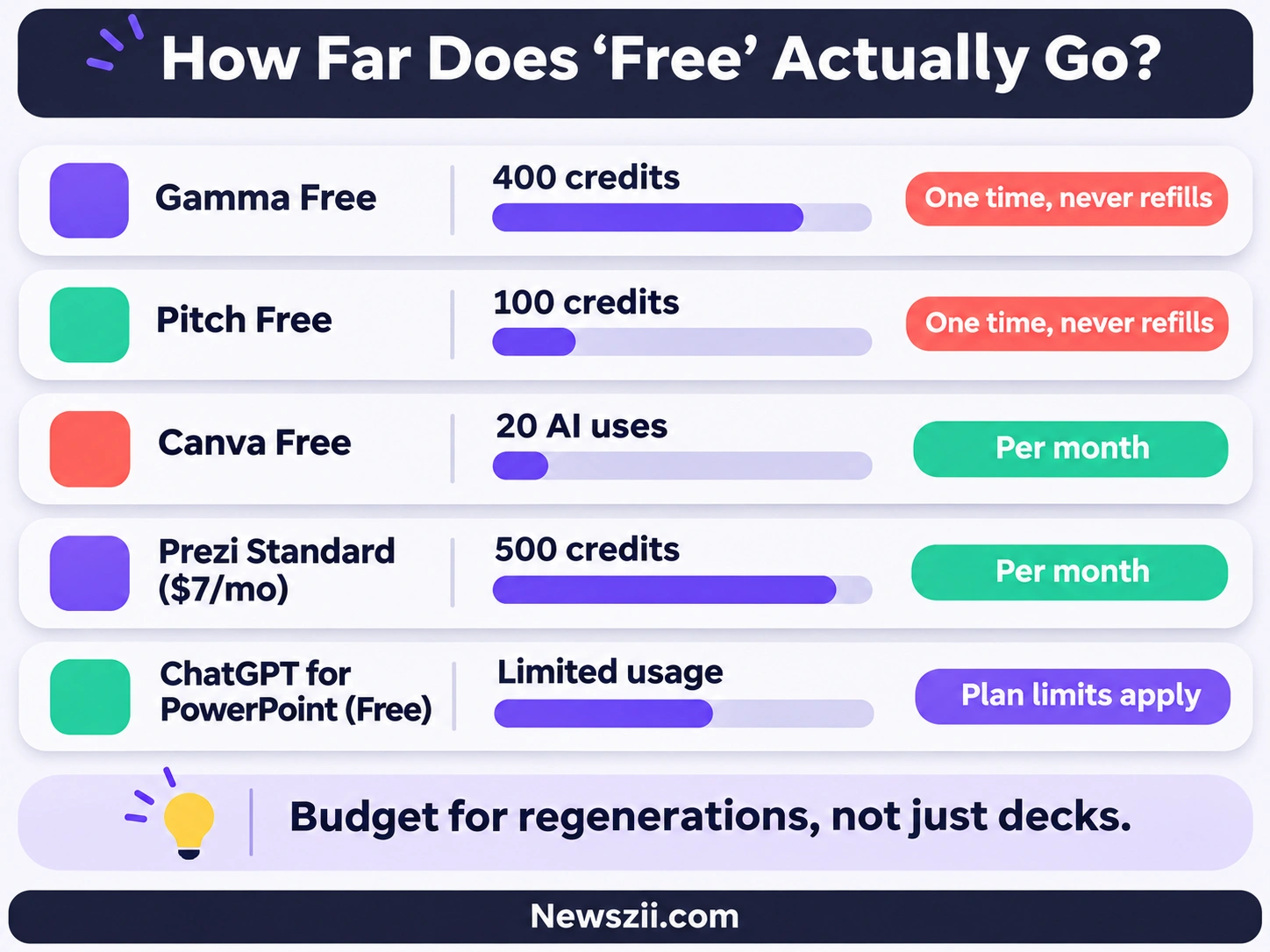
The practical upshot: budget for how often you’ll regenerate, not how many decks you’ll make. Most people don’t generate a deck once. They generate, dislike the structure, tweak the prompt, regenerate, then redo three slides. Each round costs credits.
The in-app assistants have their own version of this. Claude for PowerPoint draws on your normal Claude usage limits, ChatGPT for PowerPoint is limited on Free and Go, and Gemini in Slides has per-user limits. None of them are truly unlimited, they just hide the meter better.
Per-seat pricing adds up fast
Almost every tool here charges per person. Five people on Gamma Pro at $18 each is $90 a month, not $18. Before you buy for a team, multiply by headcount and compare that against what your Microsoft 365 or Google Workspace plan may already include.
How to make a presentation with AI (without it looking AI-made)
The tools are good. The default output is still forgettable. Here’s the workflow I’d use with any of them, and it’s the difference between a deck that sounds like you and one that sounds like everyone else’s.
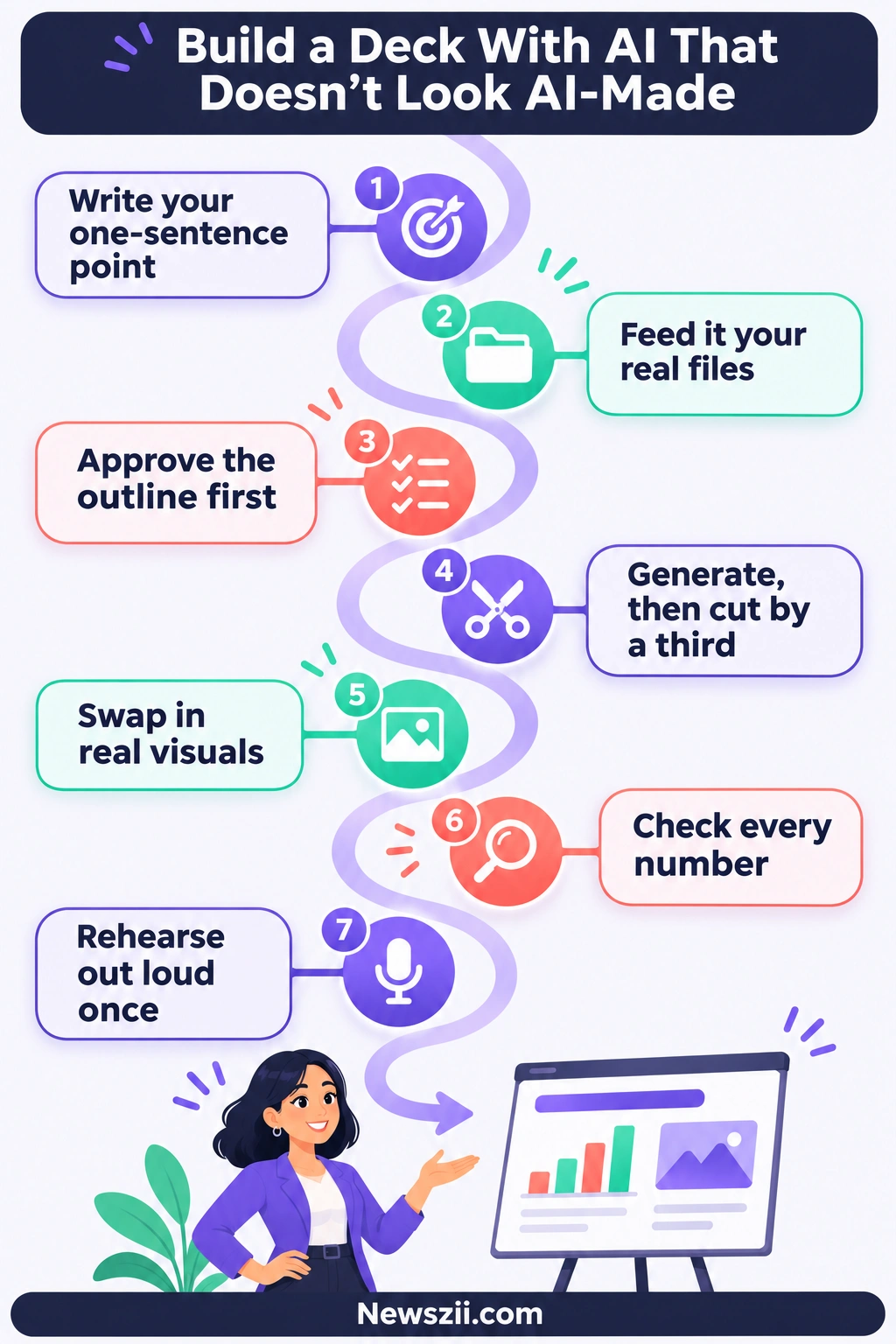
- Write the one-sentence point first. Before you open any tool, finish this sentence: “After this presentation, the audience should ___.” Approve the budget, understand the new process, invest in the round. If you can’t finish it, no AI will rescue the deck.
- Feed it your real material, not just a topic. “Make a deck about Q3 results” gets you generic slides. Uploading the actual Q3 report, the board’s questions from last quarter and your notes gets you a deck about your Q3. Gemini, Copilot, Claude and ChatGPT can all pull in existing files.
- Approve the outline before the design. Gemini, Plus AI and Gamma’s agent all let you review the structure first. Use that step. Moving one section in an outline takes seconds; rebuilding ten designed slides takes an hour.
- Generate, then cut by a third. AI tends to over-fill. It loves a five-bullet slide. Delete aggressively. One idea per slide, and a headline that states the conclusion (“Churn fell 18% after the onboarding change”) rather than the topic (“Churn update”).
- Replace generic visuals with real ones. Stock-style AI images are the fastest tell. Swap in your actual product screenshots, real charts from your data and photos of your actual team.
- Check every number by hand. AI can misread a spreadsheet, round wrongly or invent a figure that sounds plausible. OpenAI’s own guidance for ChatGPT for PowerPoint is to review important claims, numbers and slide changes before sharing.
- Rehearse out loud once. If a slide makes you stumble, it’s the slide’s fault. Fix it.
Good prompts versus weak prompts
The quality of the prompt sets the ceiling on the quality of the deck. Compare these:
- Weak: “Create a presentation about our new product.”
- Strong: “Create a 10-slide pitch for retail buyers introducing our refillable cleaning range. Audience: category managers who care about margin and shelf space. Use the attached price sheet and sell-through data. Tone: confident, no hype. End with a clear ask: a 3-month trial in 20 stores.”
The strong version tells the tool the audience, the goal, the length, the source material, the tone and the ending. Each one removes a guess the AI would otherwise make for you, and usually make badly.
Matching the tool to the deck
- Board or investor update: Claude for PowerPoint or Copilot, built on your existing template, with every figure checked.
- Sales proposal: Beautiful.ai for consistency, or Pitch if you want to see when the buyer opens it.
- Internal team update: Gemini in Slides or ChatGPT for PowerPoint. Speed matters more than polish.
- Conference talk or class: Prezi or Gamma, where visual impact counts.
- Social carousel or one-pager from the same content: Canva or Gamma, both of which make more than slides.
Common mistakes to avoid with AI presentation tools
I see the same handful of mistakes over and over. Each one is easy to avoid once you know it’s there.
- Buying before checking what you already own. Plenty of teams pay for a standalone AI tool while their Microsoft 365 Copilot or Google Workspace plan already includes deck generation. Check your current licenses first.
- Locking important decks inside one platform. Tome’s users learned this the hard way. If a presentation matters, keep a .pptx or Google Slides copy you control.
- Trusting the numbers. AI tools are excellent at layout and decent at writing. They are not a reliable source of facts. Every statistic, date and financial figure needs a human check.
- Using the first draft. The first generation is a starting point. Decks that land are edited, cut and rewritten in your own voice.
- Ignoring the credit meter. Free credits that don’t refill run out at the worst possible moment. Know your plan’s limits before a deadline week.
- Uploading files you don’t trust. Claude’s documentation warns that files from outside sources can carry hidden instructions designed to manipulate the add-in into extracting data or making destructive changes. Only feed AI tools files from sources you trust, and be careful with documents received from unknown senders.
Privacy and company data
Before you upload a confidential strategy deck or unreleased financials, check how your tool handles data. The in-app assistants tied to business plans (Copilot on Microsoft 365, Gemini on Workspace business plans, ChatGPT Business and Enterprise, Claude Team and Enterprise) typically come with admin controls your IT team can manage. Standalone tools vary. Look for SOC 2 compliance, SSO and clear data retention terms, and ask your security team before rolling a new tool out company-wide.
What to expect from AI presentation tools in 2027
Based on where the market moved in 2026, three trends look set to shape the year ahead.
First, the presentation app is becoming the battleground. With Copilot, Claude and ChatGPT all inside PowerPoint and Gemini inside Slides, AI is no longer a separate step. The fight is over which assistant understands your files and your template best.
Second, “AI-looking” slides are becoming a liability. Gamma rebuilt its whole platform in Gamma 5 specifically to get rid of what it calls the “AI smell.” Expect every tool to push harder on style variety, brand control and freeform editing, because audiences have learned to spot generic AI decks.
Third, decks are being built from where work already happens. Gamma connects to Slack and Granola, Gemini pulls in Drive files, emails and Chat, and the PowerPoint assistants connect to company data. The deck of 2027 increasingly starts from a meeting transcript, a Slack thread or a spreadsheet, not a blank slide.
The practical advice doesn’t change: pick a tool that fits where your deck has to end up, and keep a human in charge of the story.
Frequently asked questions about AI tools for presentations
What is the best AI tool for presentations?
There’s no single best tool; it depends on where your deck lives. For PowerPoint users, Microsoft 365 Copilot, Claude for PowerPoint and ChatGPT for PowerPoint lead the field. Google Workspace teams get Gemini in Google Slides built in. Gamma is the most popular choice for the fastest standalone first draft, with more than 100 million people having used it.
Is there a free AI presentation maker?
Yes. ChatGPT for PowerPoint is available on ChatGPT’s free plan with limited usage. Gamma’s free plan includes 400 one-time AI credits, Canva Free allows 20 AI uses a month, Prezi Basic is free for public presentations, and Pitch’s free plan includes 100 one-time AI credits. Free tiers suit occasional use; regular use usually needs a paid plan.
Can ChatGPT make a PowerPoint presentation?
Yes. OpenAI’s ChatGPT for PowerPoint add-in, generally available since July 6, 2026, creates and edits editable slides directly inside PowerPoint, and it works on every plan from Free (with limited usage) to Enterprise. Paid users can also use ChatGPT Slides to build a deck inside ChatGPT and export it to PowerPoint, PDF or Google Slides.
Does Google Slides have AI?
Yes. Since June 30, 2026, Gemini in Google Slides can build a full, editable presentation from a prompt and your Google Drive files. It’s included with Google Workspace Business Standard and Plus, Enterprise Standard and Plus, and the Google AI Pro and Ultra plans. The feature launched in English only.
Is Copilot in PowerPoint free?
No. Copilot in PowerPoint needs a paid Microsoft 365 Copilot license on top of a qualifying Microsoft 365 plan. Copilot Business lists at $21 per user per month, with an $18 first-year promotion through December 31, 2026, and the enterprise version costs $30. Large organizations lost free in-app Copilot Chat in April 2026.
Gamma vs Beautiful.ai: which is better?
Gamma is better for speed and flexibility. It turns prompts or documents into designed decks, docs or web pages in seconds and has a free plan. Beautiful.ai is better for consistent, on-brand business decks, thanks to Smart Slides that keep layouts tidy automatically. Gamma Plus starts at $9 a month billed annually; Beautiful.ai Pro starts at $14.50.
Can AI tools use my company’s PowerPoint template?
Some can. Claude for PowerPoint reads your slide master, layouts, fonts and colors and builds inside them. Copilot and ChatGPT for PowerPoint also work in the deck you have open, and Plus AI supports existing templates in both PowerPoint and Google Slides. Standalone tools like Gamma generally apply their own themes, so check brand control before choosing.
What happened to Tome?
Tome, an AI presentation app that reached more than 20 million users, shut down its presentation product on April 30, 2025. Its founders pivoted to building an AI CRM called Lightfield. Users who hadn’t exported their decks lost access,