Published on November 4th, 2026
Why AI email tools are worth a look in 2027
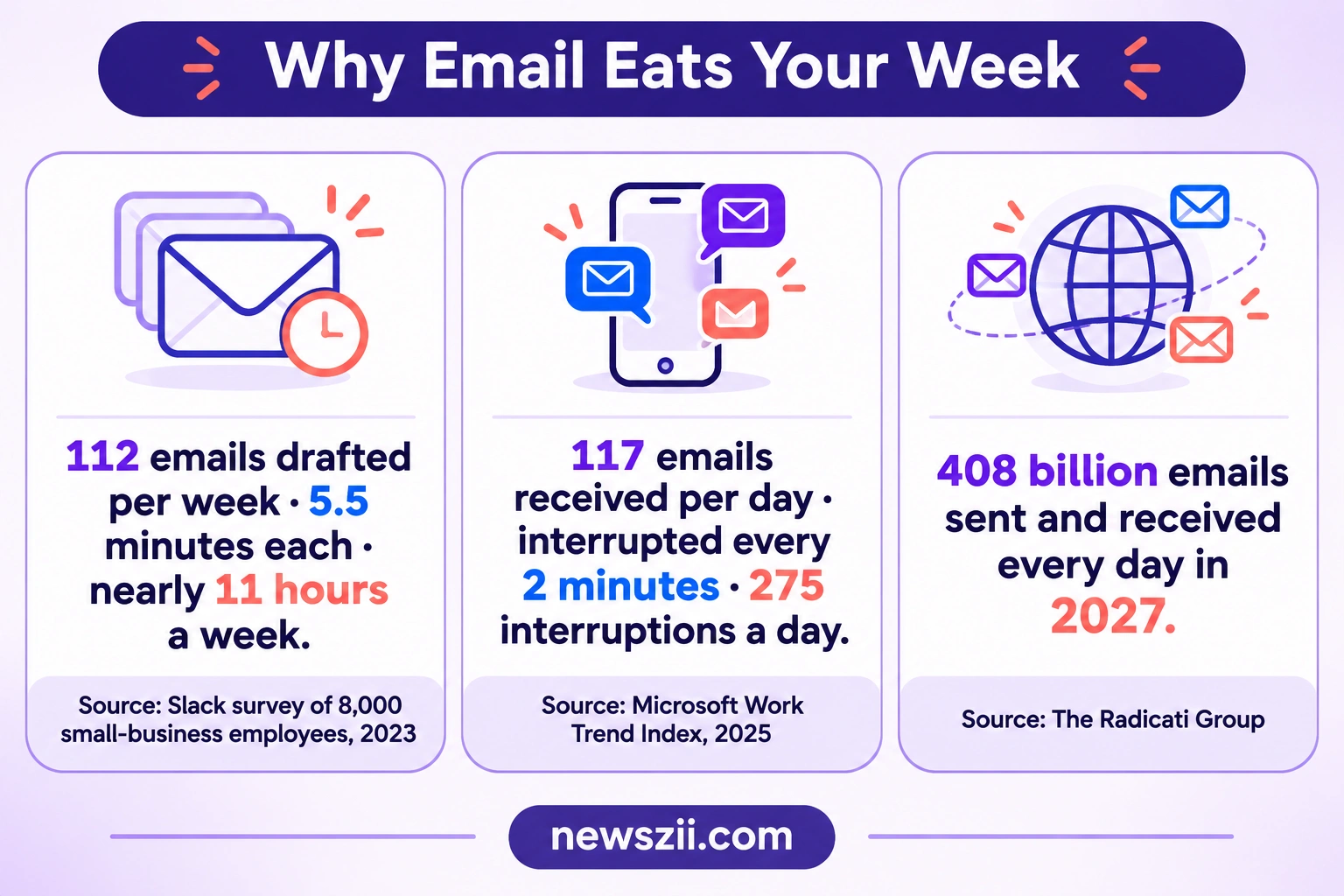
Here’s a number that should make you wince. In a 2023 Slack survey of 8,000 small-business employees in the US and UK, people drafted about 112 emails a week and spent just over five and a half minutes on each one. That works out to nearly 11 hours a week, more than a full working day, spent typing emails.
And the inbox isn’t getting quieter. Microsoft’s 2025 Work Trend Index found the average employee now receives 117 emails a day, and gets interrupted roughly every two minutes by an email, a chat ping or a meeting. Worldwide, The Radicati Group expects email traffic to pass 408 billion messages a day in 2027.
So it’s no surprise that AI tools for email writing have gone from novelty to basic kit. The good news: you may already have one. The tricky part is picking the right tool for how you actually write.
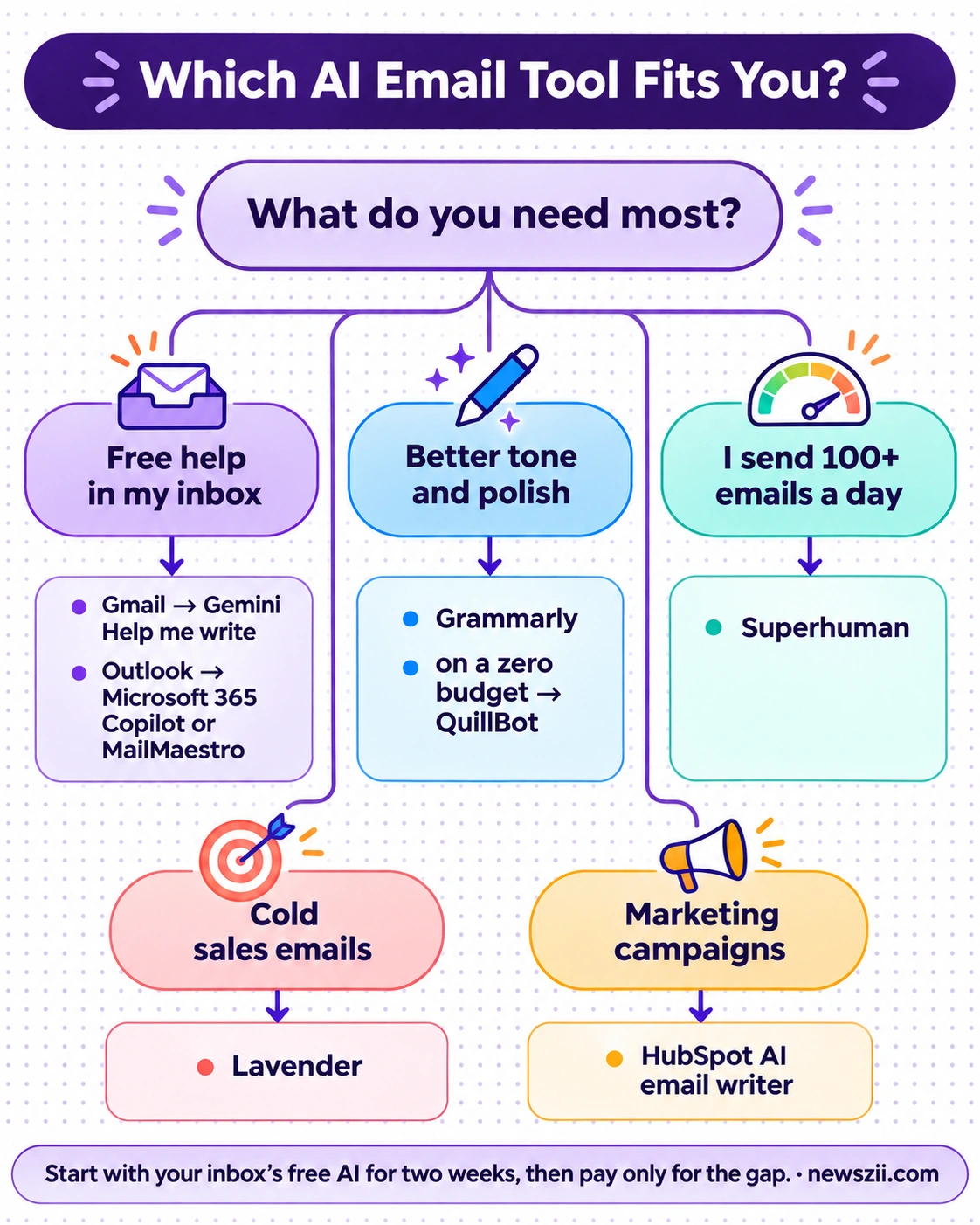
Short answer: The best AI tools for email writing in 2027 depend on your inbox. Gmail users in the US can start free with Gemini’s Help me write, and Outlook users can add Microsoft 365 Copilot. For polish, Grammarly and QuillBot work well. Lavender coaches sales emails, and HubSpot handles marketing campaigns.
The best AI tools for email writing in 2027 at a glance
- Gemini Help me write: best free option for Gmail users
- Microsoft 365 Copilot: best for teams that live in Outlook
- Grammarly: best for polishing tone and grammar anywhere you type
- QuillBot: best no-cost email drafter
- MailMaestro: best lightweight assistant for Outlook and Gmail
- Superhuman: best for people who handle email all day
- Lavender: best for sales and cold outreach
- HubSpot AI email writer: best for marketing emails and campaigns
AI email writing tools compared
Prices are in US dollars per user per month, checked in November 2026. Annual billing is cheaper for almost every tool here.
| Tool | Best for | Works in | Free option | Paid from (USD/month) |
|---|---|---|---|---|
| Gemini Help me write | Gmail users | Gmail | Yes (US personal accounts) | Google AI or Workspace plan |
| Microsoft 365 Copilot | Outlook teams | Outlook and Microsoft 365 | No | $21 + a Microsoft 365 plan |
| Grammarly | Tone and polish | Browser, desktop, mobile | Yes, 100 AI prompts/month | $12 billed yearly |
| QuillBot | Free drafting | Web, Chrome | Yes | Optional Premium |
| MailMaestro | Quick drafts and replies | Outlook, Gmail | 3 requests/week | $12 billed yearly |
| Superhuman | Heavy email users | Gmail, Outlook | No | $25 billed yearly |
| Lavender | Sales cold email | Gmail, Outlook | 5 emails/month | $27 billed yearly |
| HubSpot AI | Marketing emails | HubSpot | Yes | Marketing Hub plans |
Start here: the AI already built into Gmail and Outlook
Before you pay for anything, check what your email app already does. For a lot of people, the built-in option is enough.
1. Gemini Help me write (Gmail)
Best for: Gmail users who want quick drafts without installing anything.
Help me write turns a one-line prompt into a full email, or cleans up a draft you’ve already started. Type something like “politely tell the client the delivery slips to Friday and offer a discount,” and Gemini writes it in seconds.
In January 2026, Google made Help me write free for regular Gmail accounts. There’s a catch on location, though. Free personal accounts can use it only in the US, in eight languages including English, Spanish, French and Japanese. If you pay for Google AI Plus, Pro or Ultra, or use a Google Workspace account, you get it globally.
Paid users also get two useful upgrades added in May 2026. Gemini can now pull context from your Drive and Gmail, and it can match the tone and style of emails you’ve written before.
- Free: Help me write and Suggested Replies (US personal accounts)
- Paid only: Proofread, plus style matching
- Watch out for: drafts can feel generic unless your prompt includes real details
2. Microsoft 365 Copilot (Outlook)
Best for: businesses already running on Microsoft 365.
Copilot sits inside Outlook, Word, Teams and the rest of Microsoft 365. In email, it drafts replies, summarizes long threads and adjusts tone. Because it can see your work context, it’s handy for replies that reference a meeting or a shared file.
Pricing is where people get confused. Copilot can’t be bought on its own. Each user needs a qualifying Microsoft 365 plan, then the Copilot Business add-on on top, for organizations of up to 300 users.
- Copilot Business: $21 per user per month billed yearly, or $25.20 month to month
- Enterprise add-on: $30 per user per month, annual commitment
- Watch out for: the real cost is Copilot plus your base license, so budget for both
Microsoft ran an $18 promotional rate for existing customers through December 31, 2026. If you see that number in older articles, it no longer applies to new purchases.
Best AI tools for everyday professional emails
These tools don’t care which inbox you use. They’re about getting the words right.
3. Grammarly
Best for: anyone who writes a lot of emails and worries about tone.
Grammarly is the safety net most professionals already know. It flags typos and clunky phrasing as you type, but the bigger win for email is tone. It can tell you when a message reads as curt, and rewrite it to sound friendlier or more confident with one click.
The free plan covers grammar, spelling and 100 AI prompts a month. Pro adds full-sentence rewrites, tone adjustments and 2,000 AI prompts per member a month.
- Pricing: Free, or Pro at $12 per month billed yearly ($30 if you pay monthly)
- Works in: browser extension, desktop app and mobile keyboard
- Watch out for: monthly billing costs 2.5 times the annual rate, so commit yearly if you’re sure
4. QuillBot
Best for: students, freelancers and anyone who wants a free email drafter.
QuillBot’s email writer is refreshingly simple. Describe the email, choose how formal you want it, and you get a draft. The Chrome extension puts it right in your compose window, so there’s no copying between tabs.
- Pricing: the email writer is free; Premium unlocks more of QuillBot’s other tools
- Watch out for: vague prompts give bland drafts, so include names, dates and the outcome you want
5. MailMaestro
Best for: Outlook users who want help with drafts, replies and long threads.
MailMaestro, from Maestro Labs, took over Flowrite’s AI email-writing business. It runs as an Outlook add-in and a Gmail Chrome extension. Beyond drafting, it summarizes threads and can learn how you write, so replies need fewer edits over time.
- Free: 3 AI requests a week to compose, reply or improve emails
- Pro: $12 per seat per month billed yearly, or $15 month to month, with a 14-day free trial
- Watch out for: Outlook gets the fuller feature set; Gmail support focuses mainly on writing
Best for heavy inbox users
6. Superhuman
Best for: founders, executives and anyone who spends hours a day in email.
Superhuman isn’t an add-on. It’s a whole email client that sits on top of your Gmail or Outlook account, built around speed and keyboard shortcuts. Grammarly bought it in 2025, which tells you where AI writing and email are heading.
The Starter plan includes AI writing, instant replies and thread summaries. Business is where the heavier AI lives: Auto Drafts that prepare replies for you, Ask AI for searching your inbox in plain language, custom auto labels, and HubSpot and Salesforce integrations.
- Starter: $30 per month, or $300 a year (about $25 a month)
- Business: $40 per month, or $396 a year (about $33 a month)
- Watch out for: there’s no free plan, and switching email clients takes a week or two to feel natural
If you answer 20 emails a day, this is overkill. If you answer 150, the seconds saved on every message add up fast.
Best for sales and cold email
7. Lavender
Best for: SDRs, founders doing outreach, and anyone whose emails need replies from strangers.
Most AI writers help you write more. Lavender helps you write better. As you type a sales email in Gmail or Outlook, it scores the draft and tells you what’s dragging it down: too long, too much about you, a subject line that won’t get opened. It also pulls in research on the prospect so your opening line doesn’t sound like a template.
That coaching angle matters. Instead of handing you a finished email you didn’t write, it teaches you habits you keep even when the tool is off.

- Free: analyze and personalize 5 emails a month
- Paid (per seat, billed yearly): Starter $27, Individual Pro $45, Team $89
- Paid (billed monthly): $29, $49 and $99
- Bonus: a 7-day trial with no card, and free access for students, jobseekers and bootstrapped founders
- Watch out for: it’s built for outreach, so it’s wasted on internal or everyday email
Best for marketing emails
8. HubSpot AI email writer
Best for: small marketing teams sending newsletters, promos and nurture emails.
Writing a one-to-one email and writing a campaign for 5,000 people are different jobs. HubSpot’s AI email writer is built for the second one. Give it a topic, a few talking points and a tone, and it drafts the email, suggests subject lines and drops the copy straight into a HubSpot email template.
The real advantage is that it lives next to your contact list. You can draft, segment, send and track results in one place instead of stitching three tools together.
- Pricing: the AI email writing features are free; premium features come with paid Marketing Hub plans
- Watch out for: it shines inside HubSpot and is less useful if you send email from another platform
How to choose the right AI email tool
The “best” tool is the one that fits the way you already work. Run through these five questions and the shortlist usually picks itself.
- Which inbox do you use? Gmail points to Gemini first, Outlook points to Copilot or MailMaestro. Starting with what’s built in saves money and setup.
- How much email do you send? A handful a day: free tools are plenty. Over 100 a day: a dedicated client like Superhuman starts to pay for itself.
- What kind of email is it? Everyday replies need speed. Cold outreach needs persuasion, which is Lavender’s job. Campaigns need a marketing platform like HubSpot.
- Does it sound like you? Look for tools that learn from your sent emails. Gemini’s paid style matching, MailMaestro and Superhuman Business all do this.
- Where does your data go? For work email, check whether your company allows the tool. Business plans from Google and Microsoft keep data under your organization’s admin controls; browser extensions vary, so read their privacy page.
A simple rule of thumb: start with the free tool in your inbox for two weeks. If you keep wishing it did more, you’ll know exactly which gap to pay for.
How to make AI-written emails sound like you
Everyone has received the AI email by now. It opens with “I hope this email finds you well,” uses the word “delve,” and says nothing in four paragraphs. Here’s how to avoid sending one.
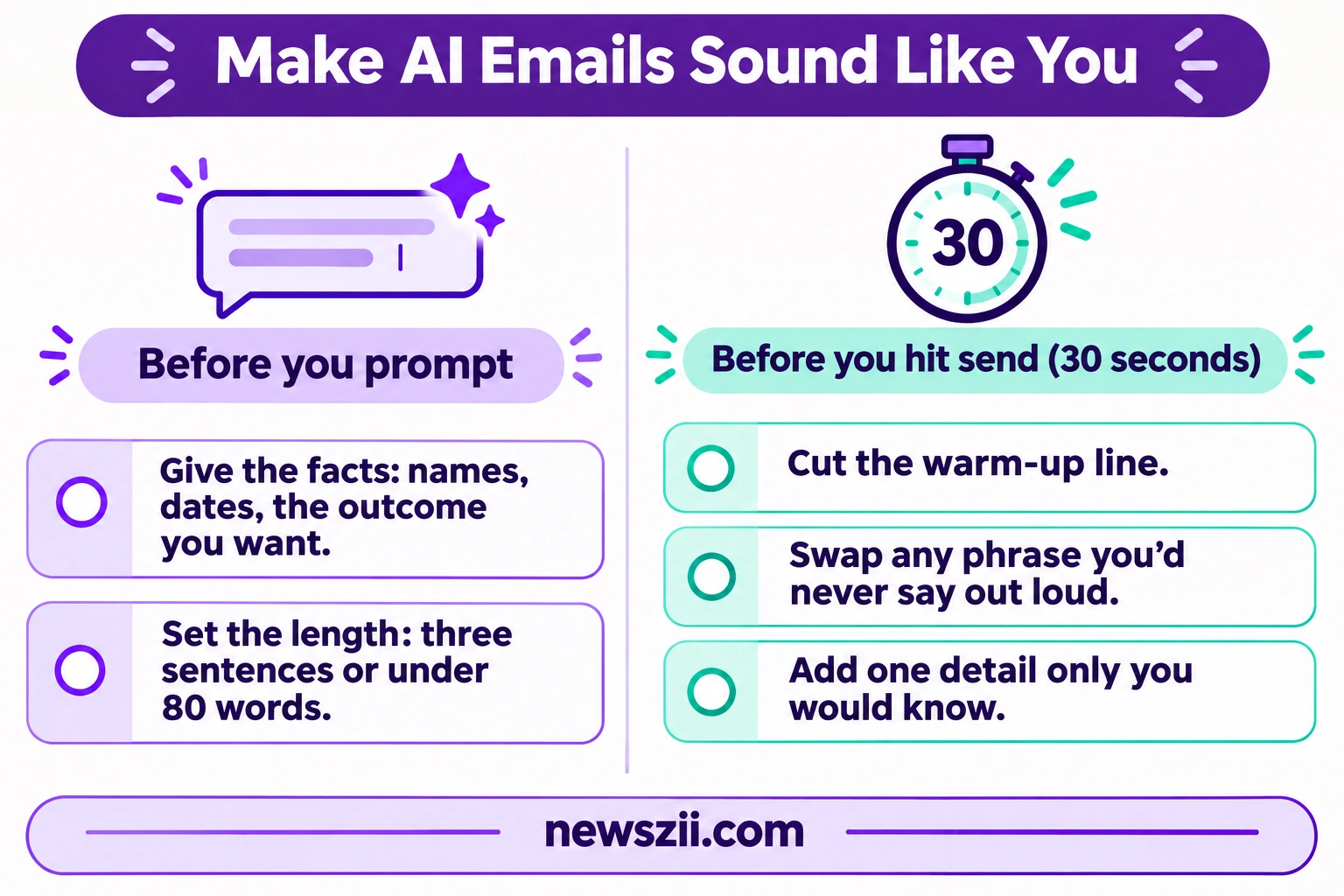
Give the AI the facts, not just the task. “Write a follow-up email” gets you filler. “Follow up with Priya about the invoice due on the 15th, keep it short and friendly, we’ve worked together for two years” gets you something close to sendable.
Say how long it should be. Ask for three sentences, or under 80 words. AI tools pad by default, and Slack’s research found many people won’t finish reading an email that runs to eight sentences or more.
Do a 30-second edit pass. Before you hit send, check three things:
- Cut the warm-up line and get to the point in the first sentence
- Swap any phrase you’d never say out loud
- Add one detail only you would know, like a past project or a shared joke
See the difference. Here’s a typical AI draft next to an edited version.
AI draft: I hope this message finds you well. I wanted to reach out to follow up on our previous conversation regarding the proposal and see if you’ve had a chance to review it.
Edited: Hi Sam, did you get a chance to look at the proposal? Happy to jump on a 10-minute call Thursday if it’s easier to talk it through.
Same message, half the words, and it sounds like a person. That’s the whole goal: let AI handle the first draft, and keep the final say for yourself.
Frequently asked questions
What is the best AI tool for writing emails?
It depends on your inbox and the type of email. Gemini’s Help me write is the easiest start for Gmail users, Microsoft 365 Copilot suits Outlook teams, Grammarly is best for tone and polish, and Lavender is the top pick for sales outreach.
Is there a free AI email writer?
Yes. Gemini’s Help me write is free for personal Gmail accounts in the US, QuillBot’s email writer is free, and HubSpot’s AI email writer is free to use. Grammarly, MailMaestro and Lavender also have limited free plans.
Is Gemini Help me write free in Gmail?
For personal Gmail accounts in the US, yes, in eight languages. Outside the US, you need a paid Google AI plan (Plus, Pro or Ultra) or a Google Workspace account. Proofread and tone-matching are paid features.
Can AI write emails that sound like me?
Increasingly, yes. Gemini (on paid plans), MailMaestro and Superhuman Business can learn from emails you’ve already sent. Even so, a quick personal edit is what makes an email sound genuinely like you.
Is it safe to use AI for work emails?
It’s generally safe if you use tools your company approves. Business plans from Google and Microsoft keep data under your organization’s controls. Avoid pasting confidential details into free tools your employer hasn’t cleared.
Which AI is best for cold emails?
Lavender is built specifically for cold outreach. It scores each email as you write, suggests fixes and adds prospect research, which general writing tools don’t do.
The Bottom Line
You don’t need a stack of subscriptions to write better emails faster. Most people should start with the AI already in their inbox: Gemini for Gmail, Copilot for Outlook. Add Grammarly if tone is where you struggle, Lavender if your income depends on cold replies, and Superhuman only if email is genuinely your whole day.
Whatever you choose, treat AI as your first-draft writer, not your voice. The emails that get replies in 2027 will still be the ones that sound like a real person wrote them, because one did.

Founder, Newszii.com | CEO, NICHE Digital Media
Praveen Panjiar brings nearly two decades of experience in digital media, web & mobile asset development, and growth strategies.
He built Newszii from the ground up into a global platform spanning tech, business, finance, and lifestyle, and has since developed a strong track record of building, scaling, and optimizing digital properties with a sharp focus on user growth, content strategy, and emerging technology trends.