Published on December 19th, 2018
Does anyone know how to change the PDF page orientation from Landscape to Portrait? I tried to change the PDF page to Portrait, only to realize that I had modified the entire document. Can anyone help? First of all, I’d like to say that Adobe® Reader® X does not have the option to change the orientation of the PDF.
You can change the orientation of the PDF for read-only. As soon as you sign out of Adobe® Reader®, you’ll notice that your changes have not been saved. The information below is about using Wondershare PDFelement to change the PDF orientation from Landscape to Portrait, in the way we generally use.
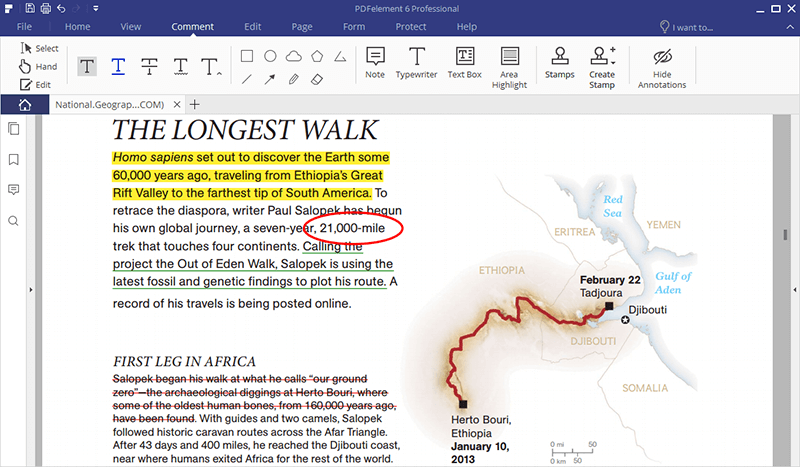
PDFelement is a professional PDF editor on the market. With the best value for money available, you can get the same complete features as Adobe® Acrobat® DC. Unlike other PDF editors, Wondershare PDFelement has a simple interface so you can learn how to use it in minutes.
To note, PDFelement has two versions to meet different people; the standard version sold at $59.95 and the pro version sold at $89.95. The difference between STD and PRO versions lies on the presence of some features like automatic form recognition, form data extraction, redaction, bates numbering and others.
You can choose the best one and the best one here means the one that meet all your needs and expectations. Whatever version you’ll deal with, you can get a special discount on PDFelement until 25th, Dec.
Change Orientation
You can easily create, convert, edit, make OCR and annotate the PDF. Both the Windows and Mac versions of PDFelement are available. For Windows 10, Windows 8, Windows 7, Windows XP and Windows Vista users, download the version for Windows. For Mac users, download the Mac version. Install the application on your computer.
Changing Landscape PDF Orientation for Portrait
Step 1. Open the PDF You Want to Change Orientation
Run the Wondershare PDFelement and open the PDF file you want to change the orientation. Just click the “Open” appeared on the interface.
You can also go to the “File” tab and click the “Open” option here. Or you can click the shortcut icon to open.
Change PDF Orientation
Step 2. Choose the “Page” menu to “Rotate”
Click the “Pages” tab to reveal the submenus. Then you need to click on “Rotate Page” option. Click “Rotate Page” to see the Page Rotation settings window.
Step 3. Export PDF from Landscape to Portrait Orientation
In the settings window, you can choose the direction and the range of pages to rotate. After that, click “OK” to save the settings. The moment you save the settings to rotate the PDF file, you have changed the orientation. Save the PDF file.
Tips: Why Do PDFs Still Use Portrait Guidance in Most Cases?
In daily life and at work, PDF eBooks, software and hardware manuals, projects or everything else, are designed to be viewed on a screen, which are mostly in portrait orientation. Only in this way, users are able to see all the content on the screen without zooming in on the PDF.
In addition, most documents are generated in Word documents or InDesign files, which are by default oriented in portrait mode. Finally, people got used to reading files in portrait orientation rather than landscape orientation.
I even bet you do not want to read many texts in landscape orientation, because this orientation can bring you visual pressure. The presence of PDFelement changed some things and to get used to, getting yourself into its official links is recommended.